Top 12 Best Free PC Cleaner for Windows 11 You Need Now
Slowing down your PC is a familiar frustration for anyone using Windows 11, especially when junk files and unnecessary background processes pile up. A poorly chosen PC cleaner can make the situation worse by missing hidden clutter or causing system instability. Choosing the best free PC cleaner for Windows 11 matters because not all tools clear out the right files or keep your system running smoothly.
A good PC cleaner targets temporary files, browser caches, and leftover installation data without deleting important system components. It should have an easy-to-understand interface that lets you control cleanup levels and includes safeguards to avoid removing essential files.
Effective cleaners handle both standard folders and hidden system caches, while running scans quickly, usually under a minute, so they don’t interrupt your daily work flow.
Need a Quick Check?
| Image | Product | Price |
|---|---|---|
Our Top Picks 1  | FixMeStick Gold | Check Price |
Our Top Picks 2  | Norton Utilities Ultimate | Check Price |
Our Top Picks 3  | iolo System Mechanic Pro | Check Price |
Our Selected Top 12 Free Pc Cleaner for Windows 11 Picks for Every Need
This list features a range of free PC cleaning tools designed for Windows 11, covering different performance levels and user needs. Each review explains how the software works, who it is best for, and highlights its key strengths and limitations.
1. FixMeStick Gold Virus Removal Stick
FixMeStick Gold Virus Removal Stick is a unique USB device suited for those needing deep virus removal across multiple Windows PCs. Its biggest strength is running before Windows starts, catching threats software antiviruses might miss, making it perfect for tackling tough malware infections.
Setup involves simply plugging the stick into a Windows PC, with no software installation required. It updates automatically before each scan, so you don’t have to worry about manual updates.
You can use it on up to 5 different computers, which is handy if you have several machines to clean within two years of subscription.
The hardware design lets it scan outside the usual Windows environment, improving detection and removal of hidden malware like rootkits and trojans. Build quality comes across as reliable and straightforward USB hardware.
The top praise highlights its ability to remove stubborn infections, but some mention the subscription model and scanning speed as drawbacks.
The strongest praise is its deep cleaning ability that removes malware other antivirus tools miss. The most common complaint relates to the subscription cost and longer scan duration. Daily use revolves around simple plug-and-play convenience but takes patience during the scan process.
Those with several Windows PCs and recurring malware problems will appreciate this tool’s thoroughness and broad compatibility. Users wanting a quick or one-time free cleaner may prefer alternatives without subscription models or slower scans.
Pros
- Runs before Windows boots for thorough scans
- No software installation needed
- Works across multiple Windows versions
- Automatic updates ensure current protection
Cons
- Subscription required for continued use
- Scanning speed can feel slow at times
| Specification | Details |
|---|---|
| Operating System | Windows XP, Vista, 7, 8, 8.1, 10, and 11 |
| RAM Required | 512 MB |
| Connectivity Technology | USB |
| Use | Unlimited on Up to 5 PCs for 2 years |
| Automatic Updates | Before Each Scan |
2. Norton Utilities Ultimate
Norton Utilities Ultimate helps clear out clutter and boost device performance, making it a great choice for Windows 11 users who want to free up storage space and speed up their PC. Its biggest strength lies in its ability to delete unnecessary files and remove unused apps, making it easier to manage both local and cloud storage.
Setup is straightforward, allowing you to quickly start cleaning and organizing your device. Daily use focuses on reducing background app activity and uninstalling useless programs. It also fixes common issues that slow the computer down over time, helping keep your system running smoothly without constant manual intervention.
Performance-wise, the cleaner efficiently reclaims storage and boosts speed by handling bloatware and background processes. It is built to maintain device health consistently, showing noticeable improvement in system responsiveness. Reviews praise how well it frees up space but sometimes note the occasional incomplete app removal as a drawback.
Many users appreciate its thorough cleaning and storage management, though some mention that not all apps are fully uninstalled. It handles routine maintenance well but occasional glitches can occur in problem fixing.
People wanting straightforward storage cleanup and speed improvements will be satisfied. Those needing deeper system repairs or perfect app removal might look for additional tools.
Pros
- Clears unnecessary files efficiently
- Removes unused applications
- Reduces background app activity
- Organizes cloud storage neatly
Cons
- Sometimes incomplete removal of apps
- Fixes may not address all system issues
| Specification | Details |
|---|---|
| Free up storage space | Delete unnecessary files, remove unused apps |
| Performance improvement | Reduce background app activity |
| Device health | Fix common problems |
| Cloud storage | Organize cloud storage |
3. Iolo System Mechanic Pro
Speed boosting is the first thing you’ll notice with iolo System Mechanic Pro. Made for serious Windows 11 users aiming to keep their PC running smoothly during gaming, editing, or streaming, it shines by automatically freeing up CPU, RAM, and hard drive resources to handle demanding tasks with ease.
Setup is straightforward, and once running, it works quietly in the background. The software detects when resource-heavy apps start and automatically reallocates system resources to optimize performance.
It also cleans hidden junk files regularly and patches Windows security holes. You’ll find it handy for wiping sensitive browsing history to keep your data safe while maintaining overall system health without constant manual input.
Performance is solid, with live updates fixing over 30,000 issues to keep the PC stable and running faster. It reliably removes clutter, freeing valuable disk space for personal files. Built with intelligent automation at its core, it consistently fine-tunes system resources under heavy workloads.
Users often praise how much faster their computers feel after using it, though some report occasional delays during deep cleans or scans.
Many users highlight a noticeable speed improvement thanks to automatic resource management and consistent issue fixing. The most frequent drawback mentioned is slowdowns during intensive cleaning operations, which can interrupt workflows briefly.
Those who want ongoing PC maintenance and speed boosts without manual tweaking will appreciate this software. People looking for a simpler, lightweight cleaner might want to explore alternatives with fewer features and a less cluttered interface.
Pros
- Automatically boosts system speed during demanding tasks
- Repairs a broad range of PC issues constantly updated
- Cleans out hidden junk to free up disk space
- Protects privacy by wiping sensitive browsing histories
Cons
- Deep scans may cause occasional slowdowns
- Some users find interface busy with many features
| Specification | Details |
|---|---|
| Speed Optimization | Automatic CPU, RAM, and hard drive resource allocation |
| Issue Repairs | Fixes over 30,000 problems with live updates from iolo Labs™ |
| Privacy Protection | Wipes sensitive browsing history and patches security vulnerabilities |
| Disk Cleanup | Removes 50+ types of hidden junk files |
4. FixMeStick Gold Virus Removal Stick

Choosing FixMeStick Gold Virus Removal Stick makes sense for anyone wanting a straightforward external tool to clear viruses without messing with software. Best for Windows 11 users who prefer a physical USB device instead of installing apps. Its biggest strength lies in the ability to boot from a stick and scan outside the operating system, which helps catch hidden malware.
Using the stick requires plugging it directly into a compatible PC’s USB port and rebooting from it. Since it operates independently from Windows 11, it avoids interference from running viruses during scanning. The setup depends on BIOS/UEFI access to boot from USB, which can be tricky on some PCs.
While technical support is available, the device doesn’t work on tablets, smartphones, or select laptop models like HP ENVY or Dell Precision.
Performance centers around thorough virus detection by starting before Windows loads, making it effective against stubborn infections. The build features a waterproof casing and straightforward USB Type A connection, making transport and everyday use simple. Common praise highlights how deep scans can reveal hidden threats.
However, some users find the device incompatible with many newer laptop models, limiting its usefulness in such cases.
The deepest scans come from booting outside Windows, effective against hidden viruses. Many report trouble booting from the stick on certain PCs, especially on models listed as incompatible. Technical support can assist but some devices simply won’t work with it.
Those with standard desktop PCs running Windows 11 will find it useful and easy. Users with specific laptops like HP ENVY or Microsoft Surface should consider alternatives since compatibility and booting issues are common.
Pros
- Scans before operating system starts for deep virus removal
- Waterproof design protects the device
- Easy plug-and-play USB Type A connection
Cons
- Booting not possible on many laptop models and tablets
- Requires BIOS/UEFI setup knowledge for some PCs
| Specification | Details |
|---|---|
| Memory Storage Capacity | 8 GB |
| Hardware Interface | USB |
| Additional Features | Waterproof |
| Connectivity Technology | USB |
| Hardware Connectivity Technology | USB Type A |
5. WinOptimizer 29

Computers often slow down because of junk files, outdated programs, and hidden performance issues. WinOptimizer 29 is designed for Windows 11 users who want to keep their PCs running smoothly with a tool that cleans deeply, updates software automatically, and protects privacy. Its biggest strength lies in bundling multiple useful features into one accessible package.
Setup is straightforward with a product key card and download link ready to go. Day-to-day use centers around its dashboard, which offers quick access to four deep cleaners that remove system junk, fix registry errors, and clear browser traces. The automatic software updater quietly handles updates in the background.
The privacy manager keeps tracking at bay, while the tweaking tools unlock extra Windows options to nudge performance higher.
WinOptimizer handles its cleaning and optimizing tasks reliably, leaving PCs feeling fresh without much user effort. The app’s modern look and dashboard layout make it easy to find what you need fast. Most praise focuses on how well it keeps software updated and the thorough cleaning it provides.
Some users mention the privacy manager could be more intuitive, but the overall experience stays solid.
The software updater stands out as a strong point, reliably keeping all programs up to date without manual checks. The privacy protection is appreciated but can feel a bit complicated to manage, especially when adjusting specific settings. The cleaning features are comprehensive and make routine maintenance straightforward.
People looking for a straightforward all-in-one PC cleaner and updater will like this tool, especially on Windows 11. Users wanting support for other OS versions or a simpler privacy interface might want to consider other options. It fits those who appreciate a clean and organized control panel to manage several tasks in one place.
Pros
- Automatic and secure software updates included
- Thorough cleaning of junk and registry errors
- Simple, modern dashboard for easy navigation
- Privacy protection blocking telemetry tracking
Cons
- Privacy manager interface can be confusing at times
- Only supports Windows 10 and 11
| Specification | Details |
|---|---|
| Software updater | Keeps all installed programs updated automatically and securely |
| Deep cleaners | Removes system junk, registry errors, browser traces |
| Privacy Manager 2 | Protects personal data and blocks telemetry tracking |
| Tweaking 2 | Unlocks hidden Windows options to boost performance |
| License | Lifetime, for Windows 11 and 10 |
6. WinOptimizer 28
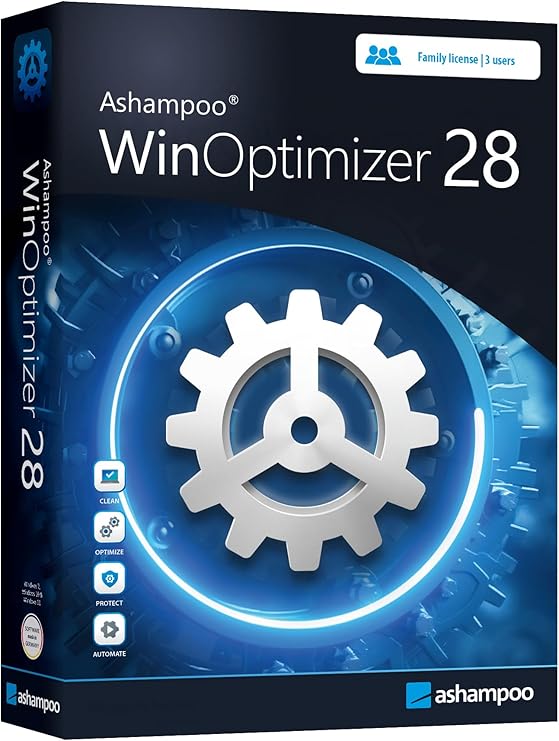
One-click optimization stands out as the main strength, making the tool perfect for anyone wanting to speed up their Windows 11 PC without complicated setup. It focuses on cleaning, fixing crashes, and improving system responsiveness all at once, so you spend less time on maintenance and more on actual work or play.
Setting up is simple with a product key card and a direct download link. Daily use revolves mainly around the 1-click optimizer that automates most processes.
Live Tuner helps in giving applications faster launch times, and cleaner profiles are regularly updated to support the latest Windows and browser versions. Several Windows 11-specific tweaks improve taskbar and Explorer functions, making it feel a bit more personalized.
The main job of optimizing and cleaning the system generally works well, cutting down on errors and crashes noticeably. The software is designed with straightforward tools suitable for casual users and those keen on deeper tweaks.
Strongest praise centers on the stability improvements after use, while the most common complaint is occasional missed optimization opportunities or features users might wish were more customizable.
The most common positive feedback highlights fewer crashes and smoother daily PC use after running optimization. On the downside, a number of users mention the cleaner might not always catch every junk file or error. The interface keeps things straightforward but could use more advanced options for power users.
Those looking for a solid, set-it-and-forget-it PC cleaning solution will find it satisfying. Users wanting very granular control or advanced customization may want to look elsewhere to meet their needs more precisely. The focus here is on ease and broad compatibility with Windows systems.
Pros
- One-click optimization simplifies maintenance
- Supports multiple Windows versions including 11
- Includes lifetime license for ongoing use
- Improves application launch times with Live Tuner
Cons
- Optimization options sometimes lack customization
- May miss some cleanup opportunities
| Specification | Details |
|---|---|
| License Type | Lifetime License |
| Supported OS | Windows 11, 10, 8, 7 |
| Optimization Method | 1-click and automated processes |
| Included | Product KEY Card with download link and license key |
| Features | Live Tuner, Windows 11 tweaks, Cleaner profiles |
7. PC Repair Bootable USB Toolkit

People dealing with various Windows 11 PC issues will appreciate this toolkit. It suits technicians and computer re-sellers who need a versatile, all-in-one repair solution. The single biggest strength lies in its ability to work on almost any PC or laptop, covering both UEFI and Legacy BIOS modes.
Setting it up involves creating a bootable USB that works with USB-A and USB-C ports, making it very flexible. You can easily add or replace any compatible ISO app for system diagnostics, malware removal, or password resets.
Running it live from the USB means your main system isn’t altered during troubleshooting. It’s straightforward with clear step-by-step instructions provided.
Performance-wise, the toolkit handles startup fixes, file recovery, and partition repairs efficiently, covering a broad range of PC problems. It’s built as a professional-grade USB flash drive with solid read speeds up to 450 MB/s, which helps with quick system operations.
The main praise is the ease of customization, while the common downside is limited writing speed at 60 MB/s, which slows adding new tools a bit.
The toolkit is praised for its flexibility and the ease of customizing bootable apps. Many find the slower write speed a minor hindrance when updating or swapping tools. It works reliably on a wide range of devices without interfering with the installed system.
Those who need a portable, professional-grade USB repair tool will find it very useful. Users wanting faster write speeds or ready-to-go built-in software might want to consider other options.
Pros
- Works with both UEFI and Legacy BIOS
- Dual USB-A and USB-C connectors
- Customizable bootable ISO apps
- Live-boot ready without modifying PC
Cons
- Write speed limited to 60 MB/s
- Lacks included software; user adds ISOs
| Specification | Details |
|---|---|
| Memory Storage Capacity | 32 GB |
| Hardware Interface | USB |
| Write Speed | 60 MB/s |
| Read Speed | 450 megabytes_per_second |
| Hardware Connectivity Technology | USB Type A, USB Type C |
8. DriverUpdater

DriverUpdater stands out by focusing specifically on updating and managing drivers to keep Windows 11 systems running smoothly. It suits those tired of manual driver searches and those wanting to avoid system crashes or peripheral issues caused by outdated or unstable drivers.
Setting up is straightforward with the included download link and license key on a product key card. Day-to-day use revolves around scanning for outdated or unstable drivers and replacing them with verified versions.
The driver backup feature is especially helpful, letting you roll back to previous drivers if an update causes problems, saving a lot of time and guesswork.
It delivers well on its main purpose by ensuring your games and applications start faster and run without glitches. Printers, headsets, and other peripherals tend to work flawlessly after updates.
Built to support Windows versions from 7 up to 11, it’s reliable and practical. Positive feedback highlights stability improvements, though some find the initial setup and driver scan to take longer than expected.
Feedback often praises how system stability improves significantly after driver updates while noting that the first scan and installation process feels slower than expected. The included backup option helps avoid headaches when a new driver causes issues.
Those who want to avoid manual driver management and maintain peripheral functionality will appreciate the convenience. Users needing super-fast scanning might want to explore alternatives with quicker checks.
Pros
- Saves hours searching for correct drivers
- Automatically replaces unstable drivers
- Driver backup allows easy rollback
- Supports multiple Windows versions
Cons
- Initial setup and scan can be slow
- License key tied to download link
| Specification | Details |
|---|---|
| Supported Windows Versions | 11, 10, 8.1, 8, 7 |
| Included Items | Product KEY Card with download link and license key |
| Main Functions | Driver updating, backup, and rollback |
| Targeted Devices | Printers, headsets, peripherals, games, and applications |
9. CleanMyPC

CleanMyPC is a PC cleaning tool designed to keep your computer running smooth and fast without needing any advanced knowledge. It stands out by offering more than 50 features along with built-in utilities that do more than just clean, making it great for users who want an easy, all-in-one solution for maintenance on Windows 11.
Setting up CleanMyPC is straightforward and doesn’t require much technical skill. Day-to-day, it scans for junk files and unnecessary data to free up disk space and improve speed.
The included tips and utilities help maintain system reliability, meaning you can handle cleaning and simple repairs without hunting for separate tools or guidance. It fits well into a regular computer care routine.
The cleaner truly delivers on its performance by efficiently clearing clutter and speeding up the PC. It handles the main job well, and users appreciate how the extra utilities contribute to overall system health.
However, some reviews note that its wide range of features might feel overwhelming for users who prefer a simpler interface with fewer options.
CleanMyPC delivers strong cleaning performance and helpful utilities to keep a PC healthy, but its many features can be too much for users wanting a minimal, straightforward tool. The comprehensive approach makes it both a cleaning and maintenance program.
Ideal for those who want to handle PC upkeep with one tool that does more than just clean. People looking for a simpler interface or just a basic cleaner might want to look elsewhere.
Pros
- Simple to use without advanced skills
- Cleans and frees up valuable disk space
- Includes a large variety of features
- Built-in utilities for comprehensive maintenance
Cons
- Wide range of features can feel overwhelming
- Some tools may not suit very basic users
| Specification | Details |
|---|---|
| Main Function | Keep your PC Clean and Healthy |
| Features | More than 50 features including cleaning and scanning |
| User Knowledge Required | No advanced computer knowledge needed |
| Utilities Included | Built-in tools for reliability, speed, and system maintenance |
10. RadarSync PC Updater

RadarSync PC Updater makes managing your Windows 11 system feel straightforward and reliable. It’s designed for those who want to keep their PC stable and fast without spending time on complicated setups.
Its biggest strength lies in fixing crashes and driver issues that often slow the computer down.
Setting up requires just a quick download and installation. Once running, the program scans your system for outdated drivers and errors with minimal user input.
Daily use is pretty simple since it highlights critical updates to improve speed and stability, so crashes become less common. The interface keeps things clear and easy to follow without overwhelming details or options.
Performance-wise, the updater does a solid job at locating and resolving driver problems, which makes a noticeable difference in system responsiveness. It’s built as a lightweight tool that runs smoothly on Windows 11 without taxing resources.
The most frequent praise is how dramatically it reduces crashes, while some users note that not every driver is caught in the scan, meaning a few manual updates might still be necessary.
The strongest praise highlights how well it reduces crashes and keeps drivers up to date, helping the PC run smoother over time. The most common complaint revolves around incomplete driver detection, which means occasional manual intervention is needed to fully resolve all issues.
Anyone looking for a straightforward, quick tool to keep their Windows 11 PC running better will find this useful. Those requiring complete and advanced driver management might want to explore other options that cover everything automatically every time.
Pros
- Quick scan and update process
- Improves system stability noticeably
- Easy for beginners to use
- Targets both crashes and driver issues
Cons
- May miss some driver updates
- Not all errors are fixed automatically
| Specification | Details |
|---|---|
| Main Function | Fix and prevent crashes and errors |
| Speed | Fast and easy to use |
| Performance Benefit | Improve PC speed |
| Driver Handling | Make driver problems a thing of the past |
11. WinOptimizer 28
WinOptimizer 28 offers a thorough PC cleaning experience tailored for Windows 11 users looking to fix errors and speed things up. Its standout feature is the incredibly fast Registry Optimizer, which claims to be up to 100 times quicker than standard cleaners.
Setting up involves using a product key card that includes a download link and license key, making installation straightforward. The program tackles crashes and errors while enhancing application launch speeds through its Live Tuner feature.
Daily maintenance feels quicker with the optimized registry cleaning, helping keep the system running smoothly without much intervention.
Its performance centers on solid error fixing and speeding up startup apps. Most praise highlights the efficiency of the Registry Optimizer and the lifetime license’s value.
Some common critiques mention that despite its comprehensive tools, it might feel overwhelming for users who prefer simpler interfaces or just want basic cleaning.
Users appreciate how quickly and thoroughly the registry optimizer cleans and fixes crashes, making their systems smoother. Some find the extensive toolset and interface a bit too much when all they want is simple cleaning.
Those wanting a powerful all-in-one optimizer with a lifetime license and multi-version support will find this fits well. Users seeking a minimalist cleaner might prefer a more basic tool instead.
Pros
- Extremely fast and efficient registry cleaning
- Fixes errors and prevents crashes
- Includes lifetime license for multiple Windows versions
- Speeds up application launches noticeably
Cons
- May feel complex for users wanting simple cleaning
- Interface can be overwhelming for beginners
| Specification | Details |
|---|---|
| Registry Optimizer Speed | Up to 100x faster |
| Compatible OS | Windows 11, 10, 8, 7 |
| License | Lifetime |
| Included with purchase | Product KEY Card with download link and license key |
| Live Tuner | Speeds up application launches |
12. Iolo System Mechanic

Built with intelligent live updates from iolo Labs, the cleaner suits anyone wanting a stable, well-maintained Windows 11 PC. Its biggest strength lies in repairing over 30,000 issues, keeping the system running smoothly without constant manual oversight.
Setting it up is straightforward, and daily use revolves around its automatic maintenance actions. It cleans out more than 50 types of hidden junk files, removing clutter and freeing disk space.
You’ll also notice it blocks unnecessary bloatware from starting automatically, helping your PC boot faster and stay responsive throughout your day.
Performance-wise, it reliably finds and fixes many common and uncommon problems, which keeps Windows stable and speeds up performance. The built-in security patches add extra protection by addressing vulnerabilities.
Praise often points to how thorough the cleaning is, while some users mention the program can feel a bit heavy during scans.
The software’s strength lies in its ability to find and fix tens of thousands of system issues while cleaning a vast range of junk files. Users commonly note that the scanning process sometimes takes longer and uses noticeable system resources.
Anyone wanting deep maintenance and active problem fixing will find it valuable, especially if you prefer an automatic, hands-off approach. Those looking for extremely light, minimalist cleaners or quick fixes might prefer simpler alternatives.
Pros
- Repairs a wide array of system issues automatically
- Removes many hidden junk files for more disk space
- Improves boot time by blocking startup bloatware
- Patches Windows security vulnerabilities efficiently
Cons
- Scan process can feel slow and resource-intensive
- Some features might overwhelm casual users
| Specification | Details |
|---|---|
| Issue Repair | Finds and fixes over 30,000 different issues |
| Junk Files Removal | Removes over 50 types of hidden junk files |
| Security | Wipes browsing history, patches Windows vulnerabilities |
| Startup Management | Blocks bloatware to accelerate boot time |
Best Free PC Cleaners for Windows 11 Compared
| Product | Key Features | Compatibility | Capacity | Special Attributes |
|---|---|---|---|---|
| FixMeStick Gold | Automatic updates before scan | Compatible with all antivirus | 8 GB USB | Runs before Windows starts |
| Norton Utilities Ultimate | Storage space cleaning | – | – | Deletes unused apps |
| iolo System Mechanic Pro | Boosts CPU, RAM speed | – | – | Optimal for gaming, streaming |
| FixMeStick Gold Virus | Waterproof USB device | 8 GB USB | USB Type A | Hardware based virus removal |
| WinOptimizer 29 | Software updater | Removes junk, registry errors | – | Privacy manager blocks tracking |
| WinOptimizer 28 Pro | One-click optimization | Fixes errors, crashes | – | Speeds application launches |
| PC Repair USB Toolkit | Dual USB connector | 32 GB USB | USB-C compatible | Live-boot ready |
| DriverUpdater Software | Updates drivers | Improves system stability | – | Boosts game performance |
| CleanMyPC Tool | Cleans disk space | Over 50 features | – | Easy for non-experts |
| RadarSync PC Updater | Fixes crashes | Improves PC speed | – | Easy to use |
| WinOptimizer 28 Standard | System optimizer | Fixes errors, crashes | – | Fast registry cleaning |
| iolo System Mechanic Basic | Repairs 30,000 issues | Protects privacy | – | Live updates from labs |
- Key FeaturesAutomatic updates before scan
- CompatibilityCompatible with all antivirus
- Capacity8 GB USB
- Special AttributesRuns before Windows starts
- Key FeaturesStorage space cleaning
- Compatibility–
- Capacity–
- Special AttributesDeletes unused apps
- Key FeaturesBoosts CPU, RAM speed
- Compatibility–
- Capacity–
- Special AttributesOptimal for gaming, streaming
- Key FeaturesWaterproof USB device
- Compatibility8 GB USB
- CapacityUSB Type A
- Special AttributesHardware based virus removal
- Key FeaturesSoftware updater
- CompatibilityRemoves junk, registry errors
- Capacity–
- Special AttributesPrivacy manager blocks tracking
- Key FeaturesOne-click optimization
- CompatibilityFixes errors, crashes
- Capacity–
- Special AttributesSpeeds application launches
- Key FeaturesDual USB connector
- Compatibility32 GB USB
- CapacityUSB-C compatible
- Special AttributesLive-boot ready
- Key FeaturesUpdates drivers
- CompatibilityImproves system stability
- Capacity–
- Special AttributesBoosts game performance
- Key FeaturesCleans disk space
- CompatibilityOver 50 features
- Capacity–
- Special AttributesEasy for non-experts
- Key FeaturesFixes crashes
- CompatibilityImproves PC speed
- Capacity–
- Special AttributesEasy to use
- Key FeaturesSystem optimizer
- CompatibilityFixes errors, crashes
- Capacity–
- Special AttributesFast registry cleaning
- Key FeaturesRepairs 30,000 issues
- CompatibilityProtects privacy
- Capacity–
- Special AttributesLive updates from labs
How to Choose the Best Free PC Cleaner
Choosing a reliable free PC cleaner involves looking for effective junk removal, privacy protection, and minimal impact on system performance. Prioritizing these factors ensures your computer runs smoothly without risking important files or exposing personal data, ultimately saving time and avoiding costly repairs.
Compatibility with Windows 11
Running a cleanup tool that isn’t fully aligned with the latest operating system can lead to missed junk files or even compatibility errors. Windows 11 introduces new file structures and system updates that older or less frequently updated cleaners might not recognize.
This means the cleaner could overlook important caches or temporary files tied to Windows 11’s architecture.
A cleaner that regularly updates helps maintain performance as Microsoft updates the OS. Check for explicit confirmation that it supports Windows 11, including optimization for the newest features like the redesigned Start menu or system security components.
Integration with the OS’s file handling system ensures smoother and safer operations, reducing the risk of conflicts or crashes.
Cleaning Features and Depth
Some cleanup programs simply target obvious junk like temp files and recycle bins, but the better ones dig deeper. Apart from clearing cache and logs, check that the tool scans less visible areas such as browser histories, shadow copies, or even broken shortcuts.
Tools with registry repair can reduce system errors and crashes by fixing outdated entries.
It’s important that the cleaning process doesn’t delete shared DLLs or system-critical files that lead to instability. Privacy protection features that wipe browsing traces and cookies come in handy for routine maintenance. Software that flags files by size and age or offers selectable options can keep cleanup thorough yet safe.
User Interface and Ease of Use
A cluttered or confusing interface can make cleanup feel like a chore, especially for users not comfortable with technical terms. Clear labels and step-by-step prompts help avoid accidental deletions.
The interface should make it easy to start scans, review what’s detected, and decide what to remove.
Automated cleaning modes free up time by taking care of routine maintenance without constant input. At the same time, manual controls let users exclude important files or folders.
The balance between automation and customization allows for practical, confident use on a daily basis.
Performance Impact and Speed
Cleaners vary widely in scanning speed. A fast scan prevents interruptions, especially when the computer is used for work or gaming. Some tools run quietly in the background, minimizing CPU and memory usage, while others can cause noticeable slowdowns during cleaning.
Monitoring system resource usage during scans helps avoid bottlenecks or crashes. Reliable cleaners complete their tasks quickly without hogging RAM or processor time.
Ideally, a cleaner finishes within a few minutes and leaves the system responsive throughout the process.
Privacy and Security Considerations
Storing and handling data securely is a priority, especially since cleanup tools access personal files and histories. Some cleaners collect telemetry data for improvement but don’t explain what is gathered or how it’s protected.
Transparency in data usage builds trust.
Look for software that clearly states it doesn’t share or misuse personal information. Features that securely erase sensitive files reduce the risk of recovery. Compliance with recognized privacy standards or certifications offers extra reassurance that your data remains confidential.
Optimizing Performance: Tips for Using PC Cleaners Effectively
One simple way to improve your Windows 11 PC’s speed is by clearing unnecessary files regularly. A good PC cleaner targets temporary files, system cache, and leftover installation files that accumulate over time.
Running the cleaner once a week can prevent sluggishness caused by disk clutter. Pay attention to the cleanup options offered. Some cleaners allow you to remove browser caches, delete old system restore points, and clear recycle bin contents selectively.
Here are practical tips to get the most out of a PC cleaner:
- Close any active applications before starting the cleanup to avoid conflicts.
- Review the files flagged for removal; occasionally, important cache files might appear.
- Use the scheduling feature if available to automate maintenance without manual intervention.
- After cleanup, a quick system reboot ensures all changes take effect properly.
Applying these straightforward steps helps maintain steady performance without interfering with your workflow.
Common Mistakes to Avoid When Using Free PC Cleaner Software
Free PC cleaners can help tidy up your system, but misusing them often causes more problems than fixes. One common error involves blindly deleting all detected files. Some system or application caches are necessary for smooth operation and removing them might slow down certain tasks.
Avoid running a cleaner during active software installations or updates as this can interrupt critical files.
Other mistakes to steer clear of include:
- Installing multiple PC cleaners simultaneously, which may lead to conflicts or duplicate scans.
- Ignoring software permissions and accidentally restricting programs from accessing essential folders.
- Disabling automatic updates on your PC cleaner, risking outdated detection methods.
- Neglecting to create a system restore point before major cleanups, which can complicate recovery if something goes wrong.
Using free PC cleaners carefully and understanding their limits helps you avoid headaches while keeping your Windows 11 machine in good shape.
Comparing Free PC Cleaners with Built-In Windows 11 Maintenance Tools
Windows 11 includes built-in maintenance tools such as Storage Sense and Disk Cleanup that handle basic junk removal and storage optimization. These tools automatically delete temporary files and manage system caches without requiring additional software.
However, their scope is more limited compared to dedicated PC cleaners.
Free PC cleaners often provide deeper scans that uncover leftover files from uninstalled programs, browser histories, and registry entries. They might also include extras like startup management, privacy protection, and duplicate file finders. On the other hand, third-party cleaners need to be installed and occasionally updated to keep pace with Windows changes.
The choice between these methods depends on your comfort level and specific needs. For many users, the built-in tools cover routine maintenance with minimal fuss, while free PC cleaners offer a more thorough cleanup for those willing to invest extra time configuring and monitoring their system’s health.
People Also Asked
Is This Free PC Cleaner Safe to Use on Windows 11?
The free PC cleaner is generally safe for Windows 11 when downloaded from a reputable source. Avoid cleaners that try to install extra software during setup, and always back up important files before running any cleanup tool.
How Much Storage Space Does a PC Cleaner Usually Free Up?
A PC cleaner typically frees up a few hundred megabytes to a couple of gigabytes by removing temporary files and caches. The actual space saved depends on how long the system has been used without cleanup.
Will This PC Cleaner Work Properly with Windows 11 Updates?
This PC cleaner works fine with Windows 11 updates but might require an update itself after major Windows upgrades. Check for the cleaner’s latest version regularly to avoid compatibility issues.
How Often Should I Run a Free PC Cleaner for Maintenance?
Running a free PC cleaner once a month is usually enough to keep the system tidy without deleting needed files. Overusing it could slow down the system or remove files prematurely.
What Common Problems Occur After Using a Free PC Cleaner?
Common problems after using a PC cleaner include accidental deletion of browser cookies or login data, causing some websites to require re-login. Review what the cleaner is removing to prevent this.
Conclusion
Choosing the right free PC cleaner for Windows 11 depends on how well it removes junk without slowing your system, how safe it is to use, and whether it provides useful features like startup management or disk analysis. It helps if the interface is straightforward so you can run cleanups quickly without confusion.
Pick a cleaner that fits how often you plan to run scans and your comfort level with technical tools. Some work better for occasional use, others for regular maintenance.
Check the comparison table and review the detailed picks above to find the one that matches your needs best.