Top 12 Best Computer Cleaning Program That Boosts Speed!
Many people notice their computers slowing down after a few months, especially if they have tried a cleaning program that promised quick fixes but ended up deleting important files or leaving junk behind. The best computer cleaning program avoids these pitfalls by being precise and reliable, removing unnecessary files without touching valuable data or system settings.
A cheap or poorly designed one can lead to crashes or even security risks by missing malware that hides in clutter.
A good computer cleaning program focuses on deep scanning power and careful deletion criteria. It usually finds and removes temporary files, cache, and obsolete system logs that can occupy several gigabytes of space. Equally important are automatic updates and an easy-to-understand interface to prevent accidental deletions.
Some programs also include tools for managing startup items and browser extensions, which help speed up your computer noticeably without risking its stability.
Need a Quick Check?
| Image | Product | Price |
|---|---|---|
Our Top Picks 1  | iolo System Mechanic | Check Price |
Our Top Picks 2  | Norton Utilities Ultimate | Check Price |
Our Top Picks 3  | AVG TuneUp Basic | Check Price |
Our Selected Top 12 Computer Cleaning Program Picks for Every Need
This list includes a variety of computer cleaning programs designed to improve performance and maintain system health. Each review explains how well the software works, who it’s best suited for, and highlights key strengths and potential drawbacks to help choose the right tool.
1. Iolo System Mechanic Pro
Speed and responsiveness become noticeable when launching games or heavy apps, making this program a solid choice for gamers and creative professionals. It fits users wanting a cleaner, faster PC without diving into complex settings. Its standout feature is the automatic boosting of CPU, RAM, and hard drive resources for smoother performance when it’s needed most.
Setup involves installing the software, which runs quietly in the background. Day-to-day, it automatically frees disk space by removing over 50 types of hidden junk files and patches Windows security holes to keep the system safer. It also keeps an eye out for over 30,000 issues, fixing them through constant updates, so the PC stays stable without manual scans.
Performance-wise, it efficiently cleans clutter and speeds up system responses during demanding tasks. The software’s continual live updates help maintain a healthy PC environment over time.
A common highlight in reviews is its effectiveness at speeding up performance, while the most frequent criticism is that it sometimes uses noticeable system resources while running.
Automatic resource boosting delivers smoother performance during high-demand activities, while ongoing repairs maintain PC stability. However, the program may sometimes consume system resources visibly, which users have pointed out as a drawback.
A good fit for users looking to keep their computer running faster without manual intervention, especially gamers and content creators. Users with minimal background knowledge who prefer full control might look for simpler or more customizable tools instead.
Pros
- Automatically manages resources for demanding apps
- Repairs thousands of issues with live updates
- Removes extensive clutter to free disk space
- Improves security by patching vulnerabilities
Cons
- Can use noticeable system resources during operation
- Automatic fixes might not cover every specific PC issue
| Specification | Details |
|---|---|
| Speed Increase | Automatically boosts CPU, RAM, hard drive resources |
| Issue Repair | Finds and fixes over 30,000 issues |
| Security | Patches Windows vulnerabilities and wipes browsing history |
| Disk Space | Removes over 50 types of hidden junk files |
2. Norton Utilities Ultimate
Norton Utilities Ultimate is a great option for anyone wanting to clean up storage and boost device performance with ease. It works best for people who want straightforward tools to manage files, apps, and cloud storage all in one place. Its biggest strength lies in balancing space cleanup with device health maintenance.
Getting started involves a simple setup that quickly scans your devices and cloud accounts for clutter and unnecessary files. Day-to-day use is centered on clearing out unused applications, deleting junk files, and reducing background app activity to keep devices running smoothly.
Regular maintenance helps avoid slowdowns, which keeps your system in better shape over time.
Cleaning tasks are handled efficiently, with a focus on removing bloatware and unneeded files to free up space. The program’s approach to organization and app management often gets praise for helping speed up older devices. Some reviews mention occasional glitches or slow scans, but most find it reliable enough for routine cleanups without complicated settings.
Many reviews say it does a good job freeing up space and organizing apps, which improves device speed noticeably. However, some find that scanning can take longer than expected and occasionally runs into minor performance hitches.
People wanting straightforward storage management and device care will find this program a useful fit. Those looking for deep technical controls or faster scan times might want to consider other options.
Pros
- Effective at cleaning up storage space
- Helpful in managing background app activity
- Combines local and cloud storage cleanup
- Regular maintenance prevents slowdowns
Cons
- Occasional slow scans reported
- May experience minor glitches during cleanup
| Specification | Details |
|---|---|
| Storage Space Management | Delete unnecessary files & organize cloud |
| App Management | Uninstall unused apps, reduce background activity |
| Device Performance | Fix common problems, improve speed |
| Maintenance Focus | Keep devices healthy over time |
3. AVG TuneUp
AVG TuneUp comes with a strong focus on cleaning and optimizing your PC to keep it running smoothly. Designed for anyone feeling their computer has slowed down or cluttered over time, it delivers a noticeable boost in speed through its wide range of system care tools.
Setup is straightforward, and day-to-day use revolves around features like the Startup Manager, which lets you control which programs launch when your PC boots. It keeps junk files from piling up with the Disk Cleaner, while the Registry Cleaner helps fix and maintain your system’s internal database.
The Sleep Mode puts unused programs into a resting state, so your computer runs lighter and quicker throughout the day.
AVG TuneUp boosts performance by clearing out unnecessary files and optimizing startup processes to fix system sluggishness. Built with a clear focus on PC health, its interface makes these tasks easy to manage. Most users appreciate how much faster their computers feel, but some have noted that the cleaning process can take longer than expected at times.
Users often praise the clear improvement in PC speed and responsiveness after running tune-up tasks. At the same time, several mention the cleaning operations can be slower than expected, requiring patience during scans and optimizations.
Anyone wanting an all-in-one tool to clean up and speed up their Windows PC will find it useful. Those looking for instant results without waiting through scans might want to consider alternatives with faster cleanups.
Pros
- Effective system cleaning and optimization tools
- Easy control over startup programs
- Frees up disk space by removing junk files
- Sleep mode reduces resource usage
Cons
- Cleaning scans may take a while to finish
- Some features require user attention to run properly
| Specification | Details |
|---|---|
| PC Optimization | Clean, declutter, and optimize system |
| Startup Manager | Manage auto-launching applications |
| Disk Cleaner | Remove junk files and free up space |
| Registry Cleaner | Repair and clean Windows registry |
| Sleep Mode | Place unused programs into sleep state |
4. Bitdefender Total Security

Fast, reliable protection across Windows, Mac, iOS, and Android makes Bitdefender Total Security a solid choice for anyone wanting to keep their digital life safe. Its biggest strength lies in constant updates that defend against the latest threats, ensuring security without slowing down your devices.
Installation is straightforward, and once set up, it runs quietly in the background. Features like real-time data protection and multi-layer malware defense work continuously to keep harmful software away.
The included privacy tools, such as the safe banking browser and webcam protection, add extra layers of security without needing much input from you on a daily basis.
Performance in detecting and blocking threats is strong, catching ransomware and phishing attempts effectively. The program is built to cover multiple platforms well, staying current with updates often. Most reviews praise its thorough protection, but some mention it can use more customization options for advanced users.
Many users appreciate how effectively it keeps defenses updated, providing strong protection against a variety of cyber threats. The most common complaint revolves around the lack of deeper customization, which some find restrictive compared to other security suites.
Anyone looking for hands-off, comprehensive digital protection across several devices will appreciate this software. People wanting highly configurable settings or a simpler interface might prefer a different solution better tailored to those needs.
Pros
- Cross-platform protection covers all main devices
- Includes dedicated safe online banking browser
- Real-time, multi-layer malware and phishing protection
- Privacy firewall and anti-theft tools included
Cons
- Limited customization options for advanced users
- Some users find the interface a bit complex
| Specification | Details |
|---|---|
| Compatibility | Windows, Mac OS, iOS, Android |
| Protection | Antivirus, ransomware, cryptomining, phishing, spam |
| Privacy Features | Banking browser, webcam protection, microphone monitor |
| Additional Tools | File shredder, parental controls, anti-theft, social network protection |
| Updates | Complete, real-time data protection with advanced threat defense |
5. EVEO Screen Cleaner Spray Kit

Great for anyone needing a gentle but effective screen cleaning solution, this kit includes a spray and microfiber cloth designed to remove dust and fingerprints without streaks. It’s especially great for cleaning delicate screens like TVs, laptops, and tablets, so you can be confident when handling sensitive electronic devices.
Setting it up is straightforward with one spray bottle and one microfiber cloth included. The spray can be applied easily on screens, and the cloth wipes off smudges without leaving residue. Its compatibility with various screen types like LCD, LED, CRT, and OLED means you can use it across all your gadgets without worry about damage or harsh chemicals.
Cleaning results are usually streak-free and thorough, leaving screens clear and fingerprint-free. The cloth feels soft enough to avoid scratches, while the spray works without being over-wet or harsh. Some users note that it takes a couple of passes for tough smudges, but most find it effective.
The inclusion of a three-year warranty speaks to the manufacturer’s confidence in quality.
Cleaning results consistently clear dust and fingerprints effectively, with streak-free finishes on various screen types. Some find stronger smudges need a couple of wipes, but the cloth and spray combination proves gentle and screen-safe. The long warranty period is a solid reassurance for quality and durability.
Ideal for people who want a safe, well-rounded screen cleaner that covers a variety of devices. Not ideal if you want multiple cleaning tools or prefer something with extra brushes or disposable wipes. It suits those who value simplicity and screen-friendly formulations over extras.
Pros
- Works well on delicate screens without damage
- Leaves no streaks or residue after cleaning
- Includes a plush microfiber cloth for gentle wiping
- Spray amount is easy to control during use
Cons
- May require multiple passes for stubborn smudges
- Only one spray bottle and cloth included
| Specification | Details |
|---|---|
| Brand | EVEO |
| Set Name | Basic Screen Cleaning Kit |
| Number of Items | 2 |
| Built-In Media | Microfiber Cleaning Cloth, Screen Cleaner Spray Bottle |
| Manufacturer Part Number | EV-22 |
| Warranty Description | 3-year manufacturer warranty |
6. Windex Electronic Cleaning Wipes

Dust and fingerprints on your screens can be frustrating and hard to clean without leaving streaks or damaging delicate surfaces. Designed for electronics, these wipes suit anyone who wants a quick and safe way to keep screens and devices spotless without fuss. Their best feature is a trusted streak-free shine that makes screens look clear and fresh.
Each pack comes with 25 pre-moistened wipes, ready to use right out of the bag. They handle a variety of gadgets including laptops, monitors, phones, tablets, and TVs. The wipes are lightly scented, which keeps cleaning pleasant.
No mixing or spraying needed, just grab a wipe and gently clean the surface. Their anti-static property helps repel dust after wiping, reducing how often you need to clean.
Cleaning performance is strong, removing fingerprints and smudges quickly with no harsh chemicals that might damage screens. The cloths feel soft and won’t scratch surfaces.
Most users appreciate the simple, convenient packaging and the neutral scent. One downside noted is the limited quantity per pack, which means buying replacements fairly often if used frequently.
These wipes are praised for their streak-free shine and gentle cleaning ability, making them great for daily use on sensitive screens. A common drawback is the rather small count per pack, which means having to purchase more often for regular use.
People needing a quick and safe way to clean common electronic screens will like these wipes quite a bit. Those looking for a larger quantity or compatibility with non-glass surfaces might want to consider other options.
Pros
- Gentle formula safe on all electronics
- Removes dust and fingerprints effectively
- Anti-static cloth reduces future dust build-up
- Neutral scent keeps cleaning fresh
Cons
- Only 25 wipes per pack
- Best suited for glass surfaces only
| Specification | Details |
|---|---|
| Scent | Neutral Scent |
| Container Type | Bag |
| Item Form | Wipes |
| Surface Recommendation | Glass |
7. iO Clean Screen Cleaner Spray
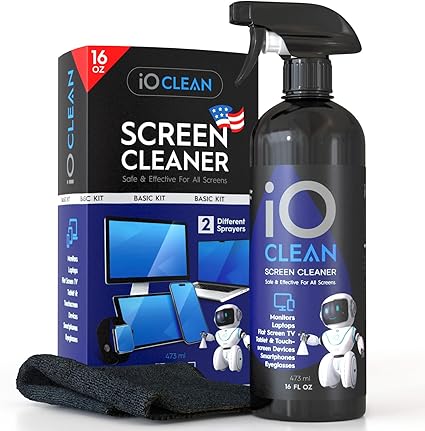
Designed specifically for delicate electronic screens, iO Clean Screen Cleaner Spray suits anyone who wants a safe and effective way to clean gadgets like smartphones, laptops, and OLED TVs. Its biggest strength is an advanced formula that cleans without scratching sensitive surfaces.
Using the spray is straightforward: just mist the cleaning solution on the included cloth and gently wipe your device’s screen. It works smoothly on all sorts of electronic screens from flat TVs to touchscreens. The unscented formula leaves no residue, making it ideal for everyday use without worrying about streaks or damage.
The spray cleans screens thoroughly while being gentle enough to avoid scratches and wear. The build quality is solid, with a well-designed spray bottle that dispenses just the right amount.
Many users appreciate how easily it removes fingerprints and dust, though a few mention it could come with a larger cloth for bigger screens.
The spray cleans fingerprints and dust very effectively without damaging screens, but some users wish the cloth was bigger for TVs and larger monitors. It’s a balanced cleaning solution that keeps delicate surfaces safe and streak-free during regular use.
People with a variety of devices from smartphones to gaming monitors will be pleased with the gentle performance. Those needing a bigger cleaning cloth or more solution in the bottle should look for options tailored for large screens or heavier use.
Pros
- Gentle advanced formula prevents scratches
- Suitable for multiple screen types and devices
- Unscented, leaves no residue or streaks
- Includes cleaning cloth for convenience
Cons
- Cloth size might be small for large screens
- Spray bottle could hold more solution
| Specification | Details |
|---|---|
| Item Form | Spray |
| Scent | Unscented |
| Specific Uses For Product | Cleaning electronic screens including LCD, LED, OLED flat TVs, smartphones, iPhone, iPad, laptops, MacBook, computers, touchscreens, monitors, e-readers, gaming monitors, projectors, tablets, car touchscreens |
| Surface Recommendation | LCD, LED, OLED displays, flat screen TVs, Smart TVs, computer monitors, laptop screens, smartphone screens, tablet screens, touchscreens, e-readers, gaming monitors, projectors, glass surfaces, screen |
8. Keyboard and Laptop Cleaning Kit

People who spend a lot of time on laptops, desktops, or mechanical keyboards will find this kit handy. It suits anyone looking for a single reliable solution to clean multiple electronic devices without juggling different tools. Its biggest strength lies in combining several specialized accessories into one neat kit, cutting down clutter and simplifying cleaning tasks.
Setup is simple since everything comes in one kit, so you don’t have to hunt for individual cleaners. The retractable nylon-bristle brush quickly sweeps away dust from keyboards or screens. The keycap puller is especially handy for anyone with a mechanical keyboard looking to deep clean beneath the keys.
Smaller tools like the metal pen tip and soft-plastic lens pen help reach narrow spaces in ports and camera lenses, while the thick polishing cloth handles screens and earbuds safely.
Cleaning feels thorough because each tool is made for a specific purpose, allowing you to tackle different types of dirt without scratching surfaces. The kit’s build holds up well for repeated use, with brushes and cloths that stay intact. Praise centers on how convenient and complete the kit is, though some find the metal pen tip a little too thin for heavy debris in larger gaps.
The kit is praised as a well-rounded set that covers most cleaning needs without adding clutter. Most criticize the metal pen tip for being a bit too delicate or narrow when dealing with heavier dirt inside keyboard gaps or ports.
Anyone who values keeping all essential cleaning tools in one kit will appreciate this. Mechanical keyboard users find the keycap puller especially useful. Those needing more heavy-duty scraping tools or additional replacement items might want to look elsewhere.
Pros
- Includes keycap puller for mechanical keyboards
- Soft brushes and cloths safe for screens
- Metal pen tip cleans dust in small gaps
- Reduces need for multiple cleaning kits
Cons
- Metal pen tip may be too thin for larger debris
- Only one unit count, no refill parts included
| Specification | Details |
|---|---|
| Brand | Ordilend |
| Set Name | Ordilend All-in-One Professional Electronic Cleaning Kit |
| Item Highlight | Electronics Deep Cleaning Reusable Brush Tool, Screen-Safe Spray, for iPhone iPad Macbook Airpod Camera, Gaming Accessories |
| Built-In Media | Keycap puller, Larger Moderate soft brush, Metal pen tip, Soft thin brush, Widen and thicken 2mm polish |
| Model Number | GW013 |
9. AVG TuneUp
AVG TuneUp stands out by combining thorough cleaning with real-time system optimization, making it ideal for users wanting their PC to run smoother and faster without constant tinkering. Its biggest strength lies in keeping background processes in check while clearing up space and fixing registry issues.
Setup is straightforward, and daily use revolves around features like the Disk Cleaner to free storage by removing junk files, and the Software Uninstaller to get rid of unused programs easily. The Duplicate Finder helps cut down clutter by tracking down copies, while Live Optimization adjusts running apps on the fly to keep your active tasks running smoothly.
Performance-wise, it effectively cleans registry errors and system files, noticeably improving responsiveness. The real-time optimization helps prioritize tasks well without needing manual tweaks. Most users appreciate how it simplifies maintenance, but some find the interface slightly overwhelming initially.
It handles the main job of speed and stability improvement competently with a solid, reliable design.
Many note that the program’s cleaning and real-time optimization genuinely boost system speed and stability. At the same time, some find the layout and feature list a bit overwhelming initially, requiring some time to understand all the options.
Those looking for a combination of disk cleanup, software removal, and ongoing performance management will appreciate what it offers. People wanting a simpler or more streamlined tool may want to consider alternatives with fewer features.
Pros
- Real-time optimization for active tasks
- Easy removal of junk and temporary files
- Includes duplicate file finder
- Simple uninstall of unwanted software
Cons
- Interface can be confusing at first
- Some features overlap with built-in Windows tools
| Specification | Details |
|---|---|
| System Optimization | Cleaning and organizing system files, registry, startup items |
| Disk Cleaner | Removes junk files and temporary data |
| Registry Cleaner | Cleans and fixes Windows registry issues |
| Live Optimization | Real-time optimization of running applications |
| Software Uninstaller | Uninstalls unwanted or unused programs |
| Duplicate Finder | Identifies and removes duplicate files |
10. CCleaner

CCleaner is a straightforward computer cleaning program best known for keeping your PC safe and running smoothly. It suits anyone looking to remove online tracking cookies, speed up startup times, and stabilize their system by fixing registry errors.
Its ease of use stands out as the biggest strength for everyday users.
Setting up takes just a few clicks, thanks to a clear interface that anyone with basic software experience can use easily. You choose what to clean, whether it’s browsing cookies, unnecessary background programs, or registry clutter. Day-to-day, it disables startup items you don’t need, helping to shorten boot times and boost overall performance without having to dig into complex settings.
Performance focuses on removing cookies to protect privacy, cleaning up the registry to reduce crashes, and managing startup items for faster boot. The software is built for simplicity and reliability. Many users praise how intuitive it is, while some point out that it occasionally misses deeper system issues that other tools might catch.
Many users praise how simple it is to clean browsing data and speed up startup, but some find it doesn’t catch all performance issues they expect. The interface is friendly, making the cleaning process quick and transparent.
People wanting basic privacy and startup control will be satisfied, while those needing more comprehensive system repair might look for specialized software. It works well for casual users rather than tech professionals.
Pros
- Deletes cookies to keep browsing private
- Cleans registry to reduce crashes
- Speeds up computer startup
- Simple and intuitive interface
Cons
- May miss deeper system problems
- Limited advanced customization options
| Specification | Details |
|---|---|
| Privacy protection | Erases cookies tracking online behavior |
| Registry cleaner | Removes clutter to improve stability |
| Startup management | Disables unneeded background programs |
| User interface | Point-and-click, easy for beginners |
11. Glary Utilities Pro

Glary Utilities Pro feels like having a tech-savvy friend who tidies up your computer regularly, making it suited for both beginners and pros. Its biggest strength is how quickly it fixes registry issues and clears wasted space with just a few clicks, keeping everything running smoothly.
Setup is straightforward, and day-to-day use involves simply launching the program and choosing the desired optimization tools. It can recover lost disk space, repair registry errors, and protect sensitive files without complicated steps. The interface is simple enough so you won’t get bogged down, yet offers enough features for deeper system maintenance when needed.
Performance here is solid, handling routine cleaning and optimization without slowing down your PC. It feels reliable and stable during scans. Users often praise how effective and fast it is in cleaning and fixing errors.
Some mention they wish it offered more detailed customization options, but the basics work well enough for most tasks.
Many users appreciate how quickly it cleans up and fixes system issues without crashing or slowing down the PC. However, some would prefer more control over detailed settings to tailor the optimization process to their needs.
People looking for a straightforward, reliable system cleaner will find it helpful. Those wanting deeper, fine-tuned control over every cleanup aspect might want to explore other options with more customization features.
Pros
- Easy to use for beginners and pros
- Fast and stable during system scans
- Effective registry and disk cleanup
- Protects confidential files
Cons
- Lacks advanced customization options
- Occasional minor interface clutter
| Specification | Details |
|---|---|
| Functionality | Repair registry, recover disk space, protect files |
| Ease of Use | Simple interface, quick operation |
| Suitability | Novice and professional users |
| Performance | Stable, fast optimization |
12. CleanMyMac X

CleanMyMac X is a solid choice for anyone looking to clear up space and speed up their Mac. It suits users wanting simple tools for uninstalling apps, privacy, and malware protection. Its greatest strength lies in freeing up gigabytes of storage with just a few clicks.
Setting it up is straightforward, and day-to-day use centers on running scans to remove junk files and uninstall unwanted applications. The privacy feature quietly keeps online activity safe, while regular malware checks run without interrupting your workflow. It’s designed to work smoothly in the background, requiring minimal input once configured.
Performance lives up to its promise by reclaiming storage and speeding the system noticeably. The interface is user-friendly and responsive, making cleanup tasks clear.
Praise often highlights how effectively it frees up disk space, while complaints sometimes mention occasional notifications about subscription renewals.
Cleaning and storage management receive consistent praise for noticeable results without complex steps. Notifications about subscription renewals are the main annoyance reported, which can interrupt day-to-day use.
People wanting an easy, all-in-one cleaning and privacy tool will find it suitable. Those focused solely on advanced malware detection or avoiding subscription reminders might want to consider alternatives.
Pros
- Frees up significant disk space quickly
- Simple uninstall feature for unwanted apps
- Runs malware scans efficiently in background
- Protects online activity with privacy tools
Cons
- Subscription renewal notifications can be frequent
- Not all malware threats detected equally
| Specification | Details |
|---|---|
| Free up space | Gigabytes of storage |
| Speed up Mac | Yes |
| Uninstall apps | Included |
| Privacy protection | Keeps online activity private |
| Malware protection | Stay malware-free |
Best Computer Cleaning Programs Comparison Table
| Product | Main Benefit | Platform | Cleaning Scope | Additional Feature |
|---|---|---|---|---|
| iolo System Mechanic | Boosts speed resource availability | Windows | CPU, RAM, Hard Drive | Optimizes high-demand apps |
| Norton Utilities Ultimate | Free up storage space | Windows, Cloud | Files, Apps, Cloud Storage | Superior cleaning |
| AVG TuneUp Basic | PC optimization performance boost | Windows | System cleaning and declutter | Enhances speed, responsiveness |
| Bitdefender Total Security | Antivirus and speed-optimized | Windows, Mac, iOS, Android | Cyber protection and organization | Cross-platform protection |
| EVEO Screen Cleaner Kit | Screen cleaning kit | – | Screen cleaning | Microfiber cloth, spray |
| Windex Cleaning Wipes | Glass surface wipes | – | Glass cleaning | Neutral scent |
| iO Clean Spray | Electronic screen spray | – | LCD, LED, OLED screens | Unscented |
| Keyboard Cleaning Kit | Electronics deep cleaning kit | – | Keyboard, screens, gaming accessories | Reusable brush, spray |
| AVG TuneUp Premium | System optimization | Windows | Files, registry, startup items | Disk cleaner |
| CCleaner Utility | Online privacy and registry | Windows | Cookies, Registry cleaning | Reduces crashes |
| Glary Utilities Pro | Swiss Army system optimization | Windows | Registry, disk space, files | Easy for all users |
| CleanMyMac X | Mac storage and speed | Mac | Disk cleanup, app uninstall | Malware-free, privacy protection |
- Main BenefitBoosts speed resource availability
- PlatformWindows
- Cleaning ScopeCPU, RAM, Hard Drive
- Additional FeatureOptimizes high-demand apps
- Main BenefitFree up storage space
- PlatformWindows, Cloud
- Cleaning ScopeFiles, Apps, Cloud Storage
- Additional FeatureSuperior cleaning
- Main BenefitPC optimization performance boost
- PlatformWindows
- Cleaning ScopeSystem cleaning and declutter
- Additional FeatureEnhances speed, responsiveness
- Main BenefitAntivirus and speed-optimized
- PlatformWindows, Mac, iOS, Android
- Cleaning ScopeCyber protection and organization
- Additional FeatureCross-platform protection
- Main BenefitScreen cleaning kit
- Platform–
- Cleaning ScopeScreen cleaning
- Additional FeatureMicrofiber cloth, spray
- Main BenefitGlass surface wipes
- Platform–
- Cleaning ScopeGlass cleaning
- Additional FeatureNeutral scent
- Main BenefitElectronic screen spray
- Platform–
- Cleaning ScopeLCD, LED, OLED screens
- Additional FeatureUnscented
- Main BenefitElectronics deep cleaning kit
- Platform–
- Cleaning ScopeKeyboard, screens, gaming accessories
- Additional FeatureReusable brush, spray
- Main BenefitSystem optimization
- PlatformWindows
- Cleaning ScopeFiles, registry, startup items
- Additional FeatureDisk cleaner
- Main BenefitOnline privacy and registry
- PlatformWindows
- Cleaning ScopeCookies, Registry cleaning
- Additional FeatureReduces crashes
- Main BenefitSwiss Army system optimization
- PlatformWindows
- Cleaning ScopeRegistry, disk space, files
- Additional FeatureEasy for all users
- Main BenefitMac storage and speed
- PlatformMac
- Cleaning ScopeDisk cleanup, app uninstall
- Additional FeatureMalware-free, privacy protection
How to Choose the Best Computer Cleaning Program
A good computer cleaning program should be reliable, easy to use, and effective at removing unnecessary files without harming important data. Prioritizing these factors helps prevent slowdowns and crashes, saving money on repairs and avoiding frustrating technical issues in the long run.
Cleaning Effectiveness
Junk files and cache can accumulate quickly, slowing down a computer noticeably over time. Programs that only clear temporary data but miss leftover files or residual registry entries often leave users frustrated with persistent performance issues.
A cleaning tool needs to handle more than basic cleanup; it should also detect and remove malware or spyware that could silently degrade system responsiveness.
Daily use benefits from a balanced tool that not only clears out clutter but also manages startup items and background services intelligently. This means shorter boot times and less lag during operation.
Effective software usually offers customizable options for deep scanning or quick cleans. Look for tools with a proven track record of identifying various threats and managing startup programs without manual interference.
User Interface and Ease of Use
Software design seriously affects how smoothly cleaning tasks fit into a workflow. Clunky interfaces can confuse users, leading to missed features or accidental deletions. A program with a clear, straightforward layout allows both novices and experienced users to run scans confidently.
Labels and prompts that explain each step reduce second-guessing and potential errors.
Customizable scan options are handy when time or risk tolerance varies. Users can choose between a quick overview or a deep dive into system files. This flexibility means the software adapts rather than forcing a single rigid process, which improves day-to-day usability.
System Compatibility
Older computers and new systems often run different operating systems and configurations. Some cleaning programs only work well on the latest OS versions or specific hardware setups.
This causes frustration for users trying to maintain multiple devices, especially if the program lacks 32-bit support or struggles with uncommon file systems.
Reliable cleaning software accommodates a range of setups, including both 32bit and 64bit architectures. Support for various Windows versions and updates is critical to avoid compatibility issues.
Handling diverse hardware configurations without crashes or errors ensures the program remains useful as devices age or get replaced.
Safety and Reliability
Cleaning software that doesn’t offer backups or restore points before deleting files can cause data loss or system instability. Users who experienced accidental removal of important system files learned to look for safety nets.
A trustworthy tool safeguards critical data by creating recovery points automatically or allowing manual backups.
Consistent updates are a sign of reliable software. They patch security holes and fix bugs uncovered after release. Without ongoing support, a cleaning tool risks becoming unsafe or less effective, potentially exposing the system to new threats or errors during cleanup.
Additional Features and Tools
Extras beyond basic cleaning can make software more useful across a device’s lifespan. Tools that include disk defragmentation or duplicate file finders help reclaim disk space and improve access speed. Some also offer privacy protection features that remove traces of browsing or file history.
Scheduled or automatic cleaning options relieve users from remembering to perform maintenance, keeping performance steady over time. Low resource use during scans means the computer can still be used for other tasks without noticeable slowdowns.
Optimizing Performance: How to Use Computer Cleaning Programs Effectively
Running a computer cleaning program can help free up storage by removing unnecessary files and temporary data. Most programs offer a scan feature that identifies junk files, registry errors, and broken shortcuts. Begin by running a full system scan before performing any cleanup. It’s important to review the scan results carefully to avoid deleting files you might still need.
Programs often allow you to select specific file types or categories to clean, so tailor the cleanup to your device’s needs.
Scheduling regular cleaning sessions keeps your system running smoothly without demanding too much manual effort. Saving backups before making changes is a good precaution, especially for registry cleaners, which can affect system stability.
Using these tools in combination with disk defragmentation and antivirus scans contributes to better overall performance over time.
Common Mistakes to Avoid When Using PC Cleaning Software
One common mistake is running cleaning software without understanding what it removes. Some programs might delete browser cookies or important cache files that speed up website loading, resulting in slower browsing.
Another pitfall is using multiple cleaners at once, which can lead to conflicts or redundant actions.
- Overusing registry cleaning tools can cause system errors if key entries are removed.
- Ignoring backup options before cleanup increases the risk of losing essential data.
- Running a cleaner only once and expecting dramatic performance improvements may lead to disappointment.
Consistency matters, but so does careful selection. Only delete files flagged as safe to remove and avoid aggressive cleaning modes unless you know exactly what they do.
Taking a cautious approach ensures your system remains stable.
Comparing Built-In Utilities Versus Third-Party Cleaning Programs
Most operating systems include built-in utilities like Disk Cleanup on Windows or Storage Management on Mac. These tools handle basic tasks such as deleting temporary files and clearing recycle bins.
They typically offer simple interfaces without the need to install extra software.
Third-party cleaning programs provide more detailed options, such as deep registry cleaning, advanced duplicate file searches, or optimized browser cache removal. They often come with scheduling features and real-time monitoring. However, some may introduce ads or require paid licenses for full functionality.
Choosing between built-in utilities and third-party programs depends on your comfort level and needs. Built-in tools are safer for routine cleaning with minimal risk. Third-party apps can be useful for a more thorough cleanup but demand more caution to avoid over-cleaning or installing unwanted software.
People Also Asked
Is This Computer Cleaning Program Safe for My Operating System?
Most computer cleaning programs are designed to be safe for common operating systems like Windows and macOS. Always check the software’s compatibility on its website before installing. Running a backup before starting a cleaning session helps prevent any accidental data loss.
How Often Should I Run a Computer Cleaning Program for Maintenance?
Running a computer cleaning program about once a week is usually enough to maintain good performance. Scheduling scans during off-hours prevents interruptions while you’re working or gaming. Be cautious not to run it too frequently as it might delete useful temporary files.
Will This Software Slow Down My Computer During Cleaning?
Some software can slow your computer during scanning, especially if it’s a full system scan using a lot of resources. Running the cleaning program while you’re not doing anything else demanding reduces noticeable slowdowns. Many programs allow you to adjust settings for less aggressive scanning.
Can a Cleaning Program Remove All Types of Malware and Junk Files?
Cleaning programs can remove many junk files and some types of malware, but they usually aren’t full antivirus solutions. They excel at deleting cache, temporary files, and browser leftovers but might miss complex malware that needs specialized tools. Use a dedicated antivirus in addition to a cleaning tool for better protection.
How Do I Troubleshoot Common Issues After Using a Cleaning Tool?
Restarting your computer after cleaning often fixes minor issues like missing files or slow responses. Problems can often be solved by restoring from a recent backup or using the system’s built-in recovery options. Checking the cleaning program’s support documentation often provides specific fixes for common problems.
Conclusion
Choosing the right cleaning program comes down to ease of use, thoroughness, and the ability to remove unwanted files without affecting important data. It helps to have extra features like startup management or scheduled scans, but the basics of identifying junk files and freeing up space are what matter most.
Speed and resource use can be important if your computer is older or slower.
Think about how often you’ll run the cleaner and the size of your system’s storage when picking one. A lighter program may be better for frequent use, while a more detailed option might suit occasional cleaning sessions. Check the comparison table and the options listed above to find what fits your needs and budget best.